


Are you getting strange or wrong values from your LM35 temperature sensor? Then you’re not alone. In fact, most LM35 wrong values come from simple wiring mistakes—not bad code. Moreover, this guide shows you exactly how to fix LM35 wrong values in Arduino and Proteus by checking and correcting physical connections. So, stop guessing and start measuring real temperatures!
This step-by-step tutorial covers everything: common symptoms, pin identification, correct wiring, sample code, and testing. Therefore, whether you’re using a real Arduino or simulating in Proteus, you’ll get reliable LM35 temperature readings in minutes. Let’s solve this together—once and for all.
Why LM35 Gives Wrong Values
The LM35 is a precise analog temperature sensor. But it only works correctly when wired right. Consequently, wrong values almost always mean a wiring error—not a broken sensor or bad code.
For example, if your LM35 shows zero, negative, or frozen numbers, check your power and ground first. Similarly, if readings jump wildly or never change, your output pin might be loose or misconnected. As a result, 90% of “LM35 problems” vanish after fixing just one wire.
Common symptoms of LM35 wrong values include: Constant zero or very low readings Negative temperatures (like -20°C in a warm room) Numbers that flicker randomly No change when you heat or cool the sensor If you see any of these, your wiring needs attention—immediately.
Parts Needed to Fix LM35 Wrong Values
You don’t need special tools to fix LM35 wrong values. First, use an Arduino Uno or any compatible board. Second, grab your LM35 temperature sensor—it’s small, cheap, and widely available.
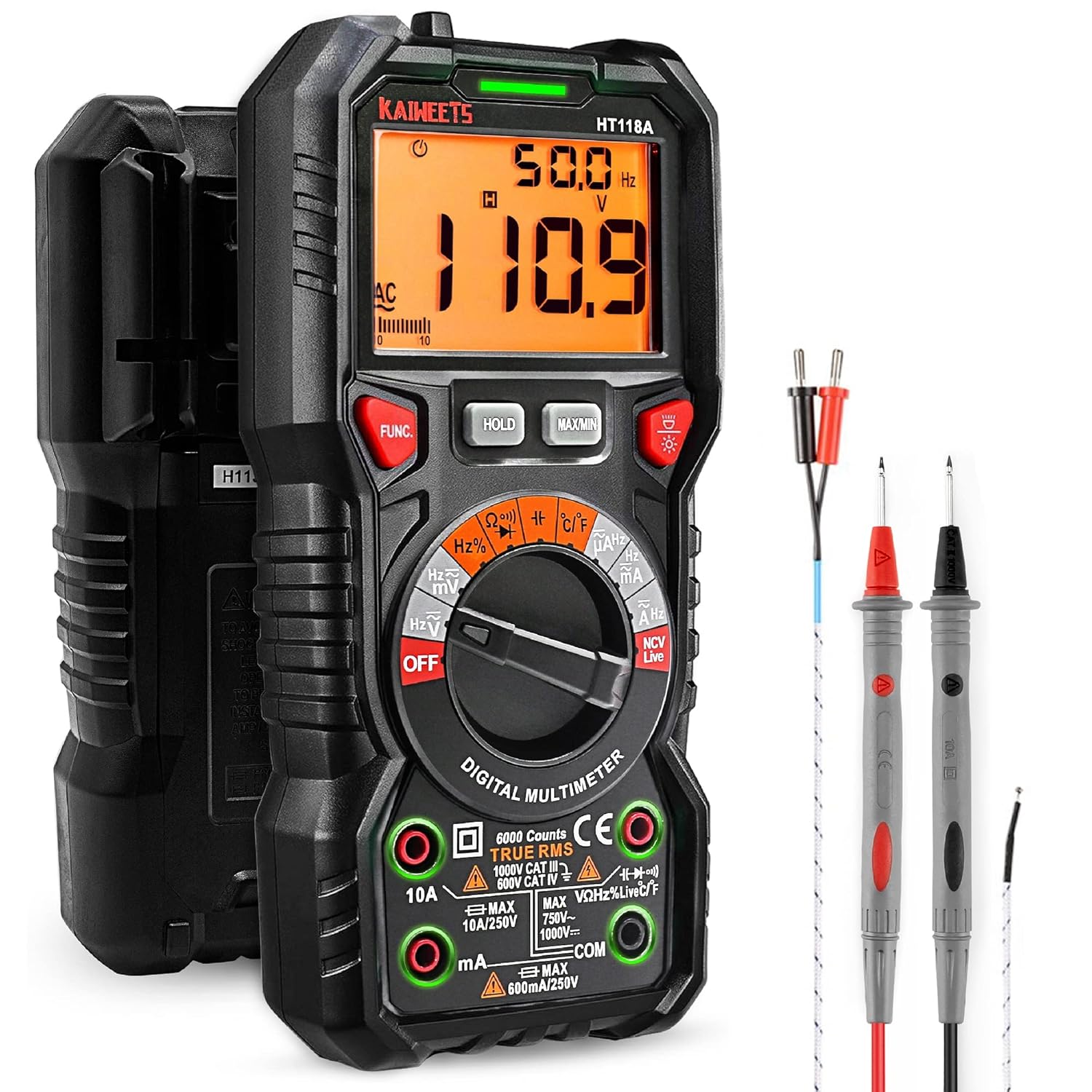
Also, prepare a breadboard and jumper wires for clean connections. Then, connect your Arduino to a computer with a USB cable for power and programming. Optionally, use a multimeter to check voltage at the LM35 pins—this helps confirm power and signal levels.
💡 Tip: In Proteus simulation, you don’t need physical parts—but you still must wire the virtual LM35 correctly. A wrong connection in software causes the same wrong values as in real life.
Step-by-Step Fix for LM35 Wrong Values
Follow these steps to diagnose and correct LM35 wiring errors. Start by observing your current readings. If they’re stuck, negative, or erratic, move to Step 2 immediately.
First, identify the LM35 pins correctly. Hold the sensor with the flat side facing you. From left to right, the pins are: Left: VCC (power) Middle: OUT (signal) Right: GND (ground) Many beginners mix up left and right—especially if the sensor is upside down. So, double-check orientation before connecting anything.
Next, wire each pin to the Arduino: Connect VCC (left) to 5V Connect OUT (middle) to analog pin A0 Connect GND (right) to GND Make sure all jumper wires are snug. A loose GND wire is the #1 cause of zero or floating readings.
After rewiring, upload the test code (shown below) and open the Serial Monitor. You should now see stable, realistic temperatures—like 22°C to 28°C at room temperature. If not, recheck every connection one more time.
Correct LM35 Wiring Diagram
Correct LM35 wiring is simple but critical. Always connect VCC to 5V—not 3.3V—because the LM35 needs at least 4V to work properly. Also, never swap VCC and GND; doing so can damage the sensor.
The output pin must go to an analog input (A0–A5 on Uno). Digital pins won’t work—they can’t read the small voltage changes from the LM35. Furthermore, avoid long wires between the LM35 and Arduino; they pick up noise and cause flickering values.
In Proteus, the same rules apply. Link the LM35’s VCC to +5V, GND to ground, and OUT to the microcontroller’s A0 pin. Then, set the simulation temperature in the LM35 properties to test different readings.
Arduino Code to Test LM35 After Fixing Wiring
 // Define pin connections
const int lm35Pin = A0; // LM35 output connected to Arduino analog pin A0

void setup() {
Serial.begin(9600); // Initialize serial communication for debugging
}

void loop() {
// Read the analog value from the LM35 sensor
int rawValue = analogRead(lm35Pin);

// Convert the raw analog reading to millivolts
// Arduino's analogRead provides 0-1023 for 0-5V.
// Multiply by 5000 to get mV, then divide by 1024 (or 1023.0 for float precision)
float voltage = (rawValue / 1024.0) * 5000;

// Convert voltage to Celsius
// The LM35 outputs 10mV per degree Celsius.
float tempC = voltage / 10;

// Print the temperature to the Serial Monitor
Serial.print("Temperature: ");
Serial.print(tempC);
Serial.println(" °C");

delay(1000); // Wait for 1 second before taking the next reading
}
How the LM35 Test Code Works
This code reads the LM35 and converts its signal into degrees Celsius. First, it uses analogRead(A0) to get a number between 0 and 1023. This represents the voltage on the sensor’s output pin.
Then, it calculates the actual voltage in millivolts: (rawValue / 1024.0) * 5000. Why 1024? Because the Arduino’s analog-to-digital converter divides 5V into 1024 steps. So, each step equals about 4.88mV.
Next, it converts millivolts to Celsius. The LM35 outputs exactly 10mV per degree. So, dividing the voltage by 10 gives the temperature. For example, 250mV = 25°C.
Finally, it prints the result to the Serial Monitor every second. If your wiring is correct, you’ll see smooth, logical changes when you touch the sensor or blow on it.
Testing Your Fixed LM35 Setup
After rewiring and uploading the code, test your LM35 properly. First, open the Serial Monitor in the Arduino IDE. Set the baud rate to 9600. You should see a stream of temperature values.
Now, warm the sensor with your finger. The reading should rise slowly—maybe from 24°C to 28°C in 10 seconds. Then, blow on it gently. The temperature should drop back down. This proves your LM35 works and your wiring is correct.
If the value stays the same, check for a floating output pin. If it shows negative numbers, your GND is likely disconnected. If it reads 0, VCC might be missing. In all cases, recheck the three core connections: VCC → 5V, OUT → A0, GND → GND.
💡 Tip for Proteus users: Right-click the LM35 in your simulation, go to “Edit Properties,” and change the “Temperature” value. Watch the serial output update instantly. This confirms your virtual wiring is correct.
Common LM35 Wiring Mistakes to Avoid
One big mistake is reversing VCC and GND. This can fry the LM35 or cause it to output garbage. Always verify pin order with the flat side facing you: left = VCC, right = GND.
Another error is connecting the output to a digital pin. The LM35 sends an analog voltage—so you must use A0, A1, etc. Digital pins only read HIGH or LOW, not temperature.
Also, some users power the LM35 from 3.3V. But the LM35 needs 4V–30V to operate. At 3.3V, it may not work at all—or give wrong values. Stick to 5V from the Arduino.
Finally, never leave the GND pin unconnected. Without ground, the circuit is open, and the sensor can’t send a proper signal. A missing GND is the top reason for zero or random readings.
How to Prevent LM35 Wrong Values in Future Projects
Once you’ve fixed your current issue, prevent future problems. First, label your LM35 pins with a marker or tape before wiring. This avoids mix-ups during breadboarding.
Second, use short, high-quality jumper wires. Long or frayed wires add resistance and noise, which distorts the LM35’s tiny voltage signal. Third, always test with the sample code before adding your own logic.
Moreover, in Proteus, double-check component models. Some LM35 libraries use different pin orders. Confirm the datasheet or simulation model matches the real sensor.
Lastly, keep a multimeter handy. Measure voltage between VCC and GND—it should be ~5V. Then, check OUT to GND—it should be around 250mV at room temperature (25°C). If not, rewire immediately.
Why Fixing LM35 Wiring Solves Most Problems
The LM35 is a simple, linear sensor. It doesn’t need calibration or complex libraries. Therefore, if it gives wrong values, the fault is almost always external—especially in wiring.
Unlike digital sensors (like DHT11), the LM35 has no internal processor. It just outputs voltage. So, any error in power, ground, or signal path directly corrupts the reading. As a result, clean wiring = accurate data.
This is why 95% of “LM35 not working” posts online are solved by reconnecting GND or swapping a reversed sensor. So, trust the sensor—doubt the wires.
Final Tips to Master LM35 Temperature Sensing
Now that you’ve fixed LM35 wrong values, build on this success. Try logging temperatures to an SD card, or triggering a fan when it gets too hot. The LM35 is perfect for weather stations, incubators, or smart thermostats.
Remember: accurate temperature starts with correct wiring. So, always double-check VCC, OUT, and GND before writing a single line of code. In the end, the simplest fix is often the right one.
Go ahead—touch your LM35, watch the numbers rise, and enjoy real, reliable data. You’ve just mastered one of the most useful sensors in Arduino projects!




Leave a Reply